App Layout
Circuit Designer's user interface is separated into two main parts:
- The App Toolbar, located below the App Header, is used for taking actions on your circuit. You can Add, Save, export and complete many other functions.
- The Element Sidebar, located on the left of the app. This lists all of the circuit elements.
- The Canvas, located in the center of the app. This is the main workspace.
- The Properties Sidebar, located on the right of the app. This lets you modify individual circuit elements.
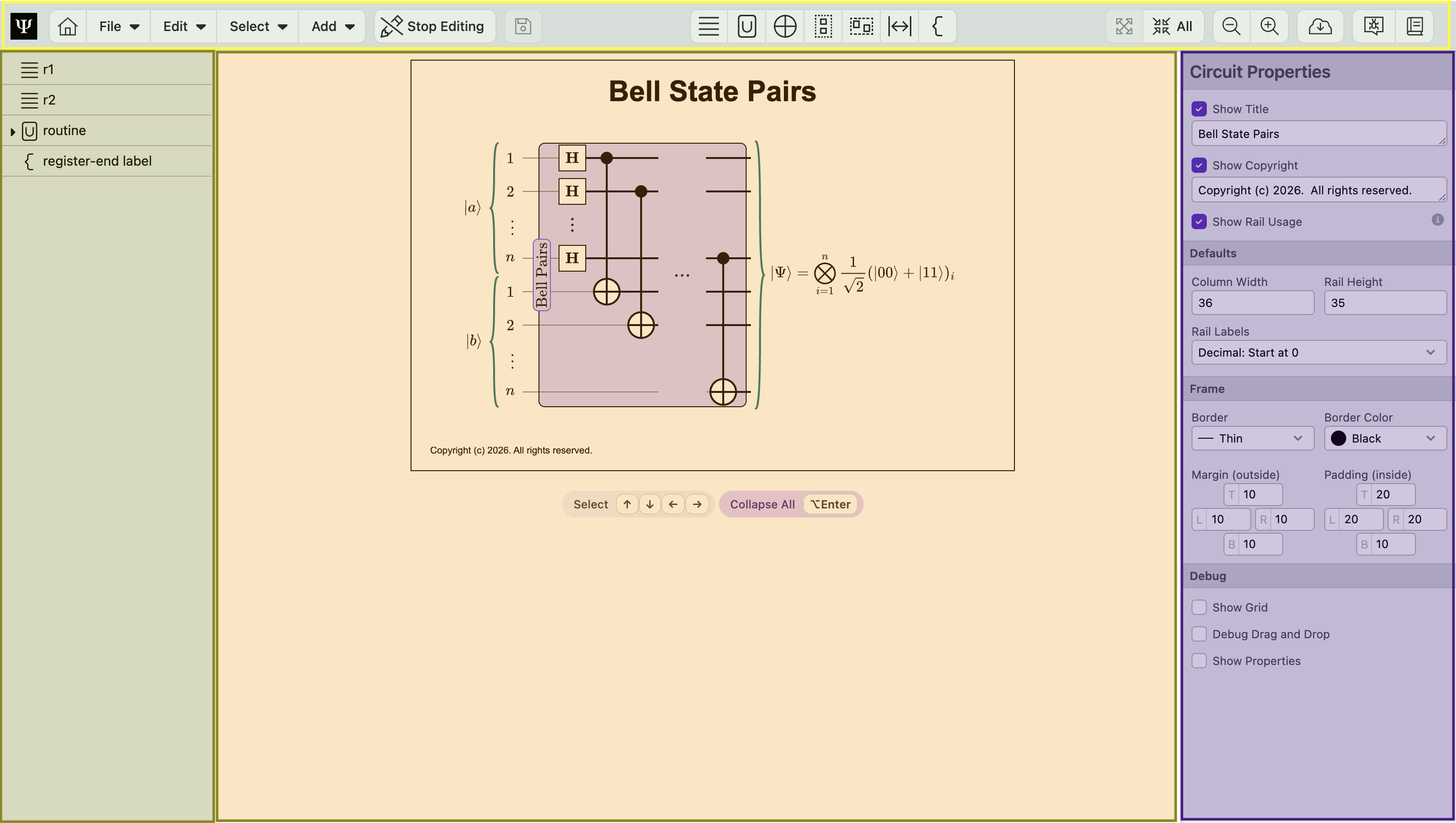 Note: The App Toolbar is yellow (top), the Element Sidebar is colored green (left), the Canvas is colored orange (center), and the Properties Sidebar is purple (right).
App Toolbar
Toolbar Actions hosts commonly used actions. They are (listed left to right):
- PsiQuantum Logo: Clicking directs you to PsiQuantum's website ⧉.
- Home: Navigate to Circuit Designer's home page. You can read more details here.
- File: Open the file actions. You can read more details here.
- Edit: Open the edit actions. You can read more details here.
- Select: Open the select actions. You can read more details here.
- Add: Open the add actions. You can read more details here.
- Start / Stop Editing: Change the state of the application from edit mode to view mode. In edit mode you can alter the circuit, while in view mode you can only open and close routines.
- Save: Save the current version of the circuit to your desktop.
- Add Register: Add a register to the circuit diagram.
- Add Routine: Add a register to the circuit diagram.
- Add Gate: Add a gate (X, CNOT, Swap, etc.) to the circuit diagram.
- Add Column: Add a column to the circuit diagram.
- Add Group: Add a group to the circuit diagram.
- Add Seperator: Add a seperator (line, space, ellipsis, etc.) to the circuit diagram.
- Add Label: Add a register label to the circuit diagram.
- Expand Selection / All: Expand the currently selected or all registers and routines.
- Collapse Selection / All: Collapse all registers and routines.
- Zoom In: Zoom the canvas in one step.
- Zoom Out: Zoom the circuit out one step.
- Download Circuit PNG / SVG / PDF: Download the circuit to an image file (PNG or SVG) or a PDF file. The image will show the current view of the circuit, maintaining the current collapse level of the circuit.
- Submit Feedback: Submit feedback to PsiQuantum's development team.
- Open Circuit Designer Documentation: Opens Circuit Designer documentation in a separate tab.
Element Sidebar
While editing, the Element Side bar lets you see and change the hierarchy of circuit elements. Elements can be grouped together with Groups, Columns, and Routines.
Elements can be moved in and outside of groups by dragging and dropping the selected items up and down this sidebar. A blue line or box appears where the element will be Added, in both the Element Sidebar and the Canvas.
Multiple elements can be selected and moved at once. Hold down the shift key and click on element names to select a range of elements. Holding shift also shows checkboxes you can use to select individual elements. Note: the names of elements reflect their IDs, not their labels.
Canvas
The Canvas shows an interactive view of the circuit. You can click to select, and double-click to expand any circuit element in the canvas. The selected element will be highlighted blue within the document.
Click the "Edit Circuit" button to show the editing sidebars.
Properties Sidebar
The properties sidebar lets you fine tune the name, location, and appearance of each element. The exact properties displayed in this sidebar depend on the currently selected circuit element.
Next Steps:
Learn about the Circuit Designer's file actions