Edit Menu
The Edit Menu lets you take various action on selected circuit elements. You can access the edit actions by clicking on the Edit Circuit menu in the main tool bar.
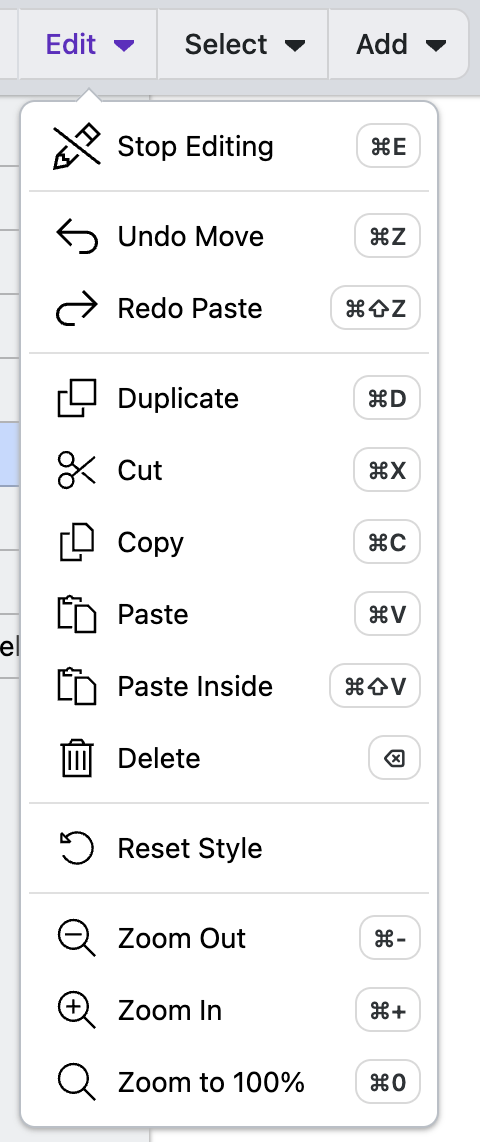
Edit Circuit / Stop Editing
Change the state of the application from edit mode to view mode. In edit mode you can alter the circuit.
Undo
Undo the previous action. You can repeat the action to undo multiple steps.
Redo
Redo the previous Undo action. You can repeat the action to redo multiple steps.
Duplicate
Duplicated the selected circuit elements. You can repeat the action to duplicate the selected circuit elements multiple times.
Duplicated items will appear to the right of the currently selected circuit element in the canvas view and below the selected item in the list view. Pasted items will remain selected and thus can be rearranged by dragging and dropping the elements in either the canvas or Elements Sidebar.
Cut
Remove the selected circuit elements, adding them to the clipboard.
Copy
Add the selected circuit nodes to the clipboard without removing them from the document.
Paste
Add the circuit elements in the clipboard after the currently selected circuit element.
- Use this if you have a Routine, Group or Column selected and want to add the elements at the same hierarchy level.
- Pasted items will remain selected and thus can be rearranged via drag and drop.
Paste Inside
Add the circuit element(s) in the clipboard to the circuit within the currently selected circuit element.
- If you Paste when a Routine or Group is selected, the elements will be added to the end of the parent element.
- If you Paste when a column is selected, the items may overlap if they have the same Target or Control registers.
- If you Paste when anything else is selected, the item will be placed after the selected element(s), but within the same parent element.
Note that pasted items remain selected and thus can be rearranged by dragging and dropping either within the canvas or in the Element Sidebar.
Delete
Remove the currently selected circuit nodes from the circuit. If you remove a parent node (i.e., Register, Group, Column, Box), the elements inside will also be deleted. Deleted items can be recovered with the Undo Action.
Reset Style Properties
Remove all style options for the currently selected elements. This is useful for bulk undoing all styling changes.
Zoom In/Out/to 100%
Change how much of the circuit is in focus. Zoom in/out will increase/decrease the size of the circuit. Zoom to 100% will reset the zoom level to the default setting. The zoom size will determine the resolution of Download as PNG. The further you zoom in, the larger the file gets.
Learn More
Learn about the Circuit Designer's Select actions